Posts

Showing posts with the label oracle

Oracle Virtual Box: Set Wider Screen Resolution
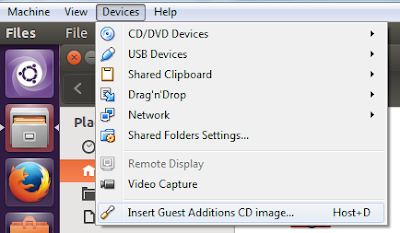
Image
This is for a scenario where you installed Ubuntu in virtual box but the screen resolution is small. (640x480) From the Ubuntu screen, go to Devices > Install Guest Additions CD Image . This will mount the CD to your Ubuntu CDRom. Next, Click Run Software or run the file VBoxLinuxAddition.run as root user. Then reboot Ubuntu VM. Alternatively, you may install the packaged version from the terminal: sudo apt-get install virtualbox-guest-dkms virtualbox-guest-utils virtualbox-guest-x11 Then reboot. After that, you can then adjust the window size of your Ubuntu VM.

Oracle Virtual Box: Access Windows (host) Folders and Drives from Ubuntu (guest)

Image
If you have an Ubuntu OS installed with Oracle Virtual Box, and your host OS is Windows, the following procedure will allow you to share drives or directories from Windows to Ubuntu. From you Ubuntu screen menu, go to Devices > Install Guest Additions CD Image . This will mount the CD to your Ubuntu CDRom. Next, Click Run Software or run the file VBoxLinuxAddition.run as root user. You may have to restart Ubuntu after this. After restart, go to Device > Shared Folder Settings . Click the (+) icon then create a name for the folder or drive to share. Also check the "Make Permanent" option. Now we're done with the shared folder. In my example, it's D_DRIVE for D: Then in Ubuntu, open Terminal and run the command below: sudo mount -t vboxsf <shared folder> <path to local directory> Here is my example: sudo mount -t vboxsf D_DRIVE /home/hanapiers/D_DRIVE You may also add the command in  /etc/rc.local  without the sudo .  This will ...