Posts

Showing posts with the label bash

Vim: Using Abbreviations

VIM abbreviations can save typing and/or improve typing accuracy. By using :ab or :abbreviate , you can define abbreviations in VIM editor or the .vimrc file. i.e. This command will automatically replace "cia" with "central intelligence agency" :ab cia central intelligence agency or :abbreviate cia central intelligence agency i.e. You can also shorten a line of code :ab ubb #! /usr/bin/bash The above code will replace ubb with #! /usr/bin/bash The following command will remove a specific abbreviation :una ubb or :unabbreviate ubb This command will remove all abbreviations defined :abc or :abclear
Bash: Caret Substitution

Sample command: echo "dev" && echo "my dev" Replace "dev" with "prod": ^dev^prod Previous command will now be this: echo "prod" && echo "my dev" To replace all occurences of "dev": ^dev^prod^:& Previous command will now be this: echo "prod" && echo "my prod"

Getting Started with Composer

Install Composer Run this command in the root directory of your project: php -r "readfile('https://getcomposer.org/installer');" > composer-setup.php php -r "if (hash('SHA384', file_get_contents('composer-setup.php')) === '41e71d86b40f28e771d4bb662b997f79625196afcca95a5abf44391188c695c6c1456e16154c75a211d238cc3bc5cb47') { echo 'Installer verified'; } else { echo 'Installer corrupt'; unlink('composer-setup.php'); } echo PHP_EOL;" php composer-setup.php php -r "unlink('composer-setup.php');" Alternatively, you may run this in your command line: curl -sS https://getcomposer.org/installer | php Create the JSON file for your packages Put a file named composer.json at the root of your project, containing your project dependencies: { "require": { "vendor/package": "1.3.2", "vendor/package2": "1.*", "vendor/...

Bash: Copy files by extension from sub-directories to another directory

Goal: Copy all image (*.png) files from all sub-directories of dir1 into single directory, dir2. Source: bash_examples/ dir1 - dir3 - f1.png - f2.png - f5.jpg - dir4 - f3.png - f4.png Destination: bash_examples/ dir2 - f1.png - f2.png - f3.png - f4.png 1. Change the directory to dir1 cd ~/Desktop/bash_examples/dir1/ 2. Find all files with .png extension then apply cp command to copy each file from dir1 to dir2 find . -name \*.png -exec cp -v '{}' "/Users/mac0611/Desktop/bash_examples/dir2" ";" ./dir3/f1.png -> /Users/mac0611/Desktop/bash_examples/dir2/f1.png ./dir3/f2.png -> /Users/mac0611/Desktop/bash_examples/dir2/f2.png ./dir4/f3.png -> /Users/mac0611/Desktop/bash_examples/dir2/f3.png ./dir4/f4.png -> /Users/mac0611/Desktop/bash_examples/dir2/f4.png cd ..; ls dir2/ f1.png f2.png f3.png f4.png

Bash: Calculate Date in Ubuntu and Mac OS

Display current date date +'%Y-%m-%d %H:%M' 2015-08-07 17:06 Add 3 mins, 5 days, 2 months, 4 years to current date (Mac OS) date -v +3M -v +5d -v +2m -v +4y +'%Y-%m-%d %H:%M' 2019-10-12 17:09 Add 3 mins, 5 days, 2 months, 4 years to current date (Ubuntu) date -d "3 minutes 5 days 2 months 4 years" +'%Y-%m-%d %H:%M' 2019-10-12 17:09

Install MONACO Font in Ubuntu

To download MONACO font in Ubuntu, follow the steps below: #1: Install directly: 1. Download http://www.gringod.com/wp-upload/software/Fonts/Monaco_Linux.ttf 2. In ~/Downloads, click Monaco_Linux.ttf 3. Click the Install button. #2: Using terminal: 1. If you have cURL installed, run the following in the terminal: curl -kL https://raw.github.com/cstrap/monaco-font/master/install-font-ubuntu.sh | bash #3: Manual installation: sudo mkdir -p /usr/share/fonts/truetype/ttf-monaco; cd /usr/share/fonts/truetype/ttf-monaco/ sudo wget http://www.gringod.com/wp-upload/software/Fonts/Monaco_Linux.ttf sudo mkfontdir cd /usr/share/fonts/truetype/ fc-cache

Create Bash Aliases With Arguments In Ubuntu

Image
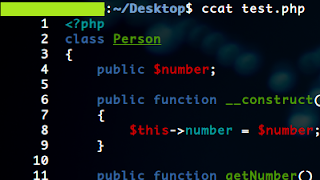
The scenario here may not be the same with you but the point is you want your bash alias to work with parameters. Say I want to display a file's content in colors and I want the output to display line numbers as well. For the color part, I used python's syntax highlighter called pygments and I used bash built-in line numbering command called nl . Now to achieve my goal, I have to pipe nl to the result of pygmentize: pygmentize test.php | nl This is quite a hassle especially if you have to do it frequently only with different files. Unfortunately, bash alias does not directly accept parameters. The solution is to create a bash function. ccat() { pygmentize $1 | nl } or multi-line: function ccat() { pygmentize $1 | nl } I named the function ccat (custom cat) because it works like a cat command but the syntax is highlighted. Put this function in ~/.bashrc and then restart your terminal or use source: ccat test.php

Ubuntu Color in Terminal

Image
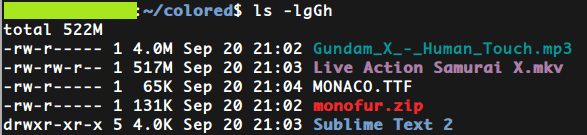
In ubuntu, you can actually add colors to the plain old terminal simply by turning on a flag in your terminal settings. Open your shell prompt and edit the file `.bashrc`, a configuration file for the terminal. It's usually in the home directory. $ nano ~/.bashrc Now look for the line and remove the `#`: # force_color_prompt=yes Save the changes. Then source the file for the changes to take effect or restart your terminal. $ source ~/.bashrc Now you will see your terminal colorized.

Creating Bash Aliases

In bash scripting, you can create aliases for the shell commands you frequently used. The most simple way to create an alias is to assign it directly in your terminal: alias ll='ls -l' The ls command list the files and directories in the current directory. Now if you run the ll command in your terminal, this will list the files in long format as specified by the -l option. The disadvantage is that the alias will only work in the current shell. This means that if you open a new tab or window, the ll command will not work there. Also, the ll command will not work anymore once you closed the terminal. If you want to create an alias that will work in any shell instance, you can add your aliases in ~/.bash_aliases. After adding your alias fire up this command to make it effective immediately: $ source ~/.bash_aliases